Kiddom
November 24, 2026


An AI teaching assistant is only as useful as what it knows about your classroom. Most general chat tools start from nothing. You paste in the standard, describe your students, and hope the answer fits.
Kiddom Assistant already starts from your curriculum. Now it can also read the files that make your classroom yours: the district pacing guide, the school rubric, and your class's assessment results. It can also open the curriculum's own attachments, slide text, assessments, and answer keys. Here are three ways to put that to work this week.
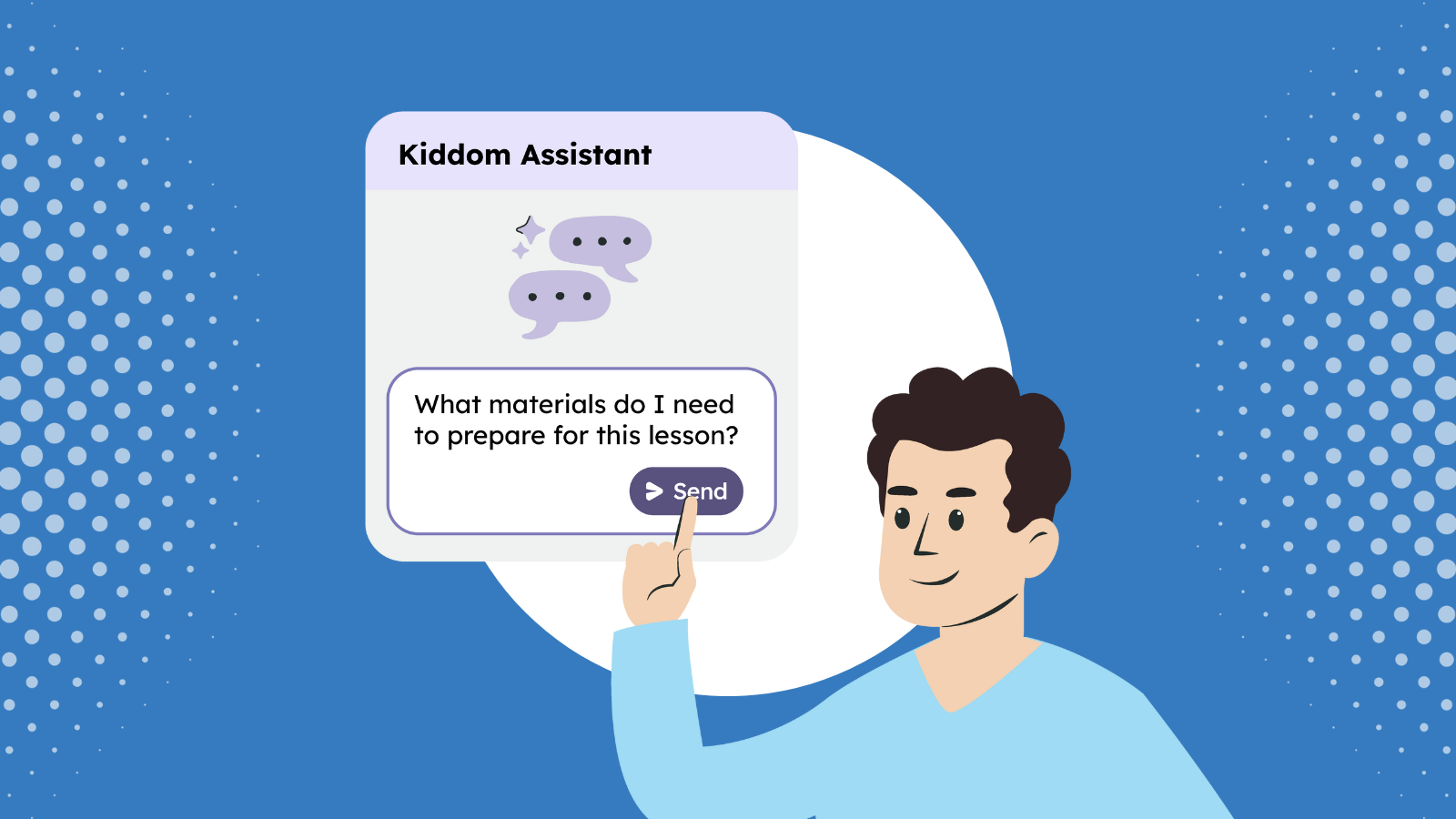
Open Kiddom Assistant from any page, including Home and your curriculum pages. Select the + menu, choose Upload a file, and add up to five files to a message. Each file shows up as a card above the message box. Ask your question, and Kiddom Assistant answers from the file and the curriculum around it.
Your uploads belong to that conversation, and only you can see them. Start a new conversation and you start fresh.
Pacing guides are written for a whole district. You teach on a real calendar, with testing windows, assemblies, and a short week before break. Making the unit fit usually means rereading every lesson to decide what to combine or trim.
Take Grade 6, Unit 3 in Kiddom Math: Unit Rates and Percentages. It runs 17 lessons across four sections, from unit conversion through rates and percentages to a closing project. Upload your district's pacing guide and ask Kiddom Assistant to set the two side by side.
Your school may already have a rubric for explaining mathematical thinking. Upload it, and it sits in the same conversation as the lesson.
In Unit 3, Lesson 11, Representing Percentages with Double Number Line Diagrams, students use a double number line to reason about percentages. Before class, ask Kiddom Assistant what your rubric looks like for that task.
An end-of-unit assessment tells you which questions your class missed. Deciding what to do about it is the slow part: you go back to each item, work out what the wrong answers mean, and find the lessons that teach the idea.
Export your class's scores on the Unit 3 End-of-Unit Assessment as a spreadsheet, take out student names and IDs, and save it as a CSV. Upload it, and Kiddom Assistant can read your results next to the assessment itself.
The curriculum's notes do much of the work. On one rate question, students are told it took 4 hours to drive 240 miles and asked how long 90 miles takes. The notes explain that students who answer 60 hours divided the distance by the time, which gives the speed instead.
A few honest limits, so you know what to expect.
An AI teaching assistant is a tool that answers a teacher's planning and instruction questions in conversation. The useful ones are grounded in what you actually teach. Kiddom Assistant is built into Kiddom's curriculum, so it starts from the lesson you have open, and you can add your own files for local context.
Yes. Select the + menu in Kiddom Assistant and choose Upload a file. You can attach PDF, plain text, Markdown, CSV, PNG, JPG, and WebP files, up to five per message and 10 MB each. Kiddom Assistant then answers using your files and the curriculum together.
Only you. Files you upload stay in the conversation where you added them and are visible only to you. They do not carry over to a new conversation.
Upload your pacing guide to Kiddom Assistant and ask how it lines up with the unit you are teaching. It can show which lessons introduce the ideas that appear on the unit assessment, so you can decide what to combine when your calendar runs short. The decisions stay with you.
Yes. Kiddom Assistant can read supported assessments, checkpoints, practice problems, and answer keys in the curriculum. You can ask what an item checks, what a wrong answer suggests, and which lessons prepare students for it.
Not as direct uploads. Save Word files as PDF and spreadsheets as CSV before you upload them. In the curriculum, Kiddom Assistant reads the text on slides in PowerPoint and Google Slides decks, but not speaker notes.
Use tools your district has approved, and remove names and other identifying details before you upload. In Kiddom Assistant, uploads are visible only to you and stay in a single conversation.
Research and practice
More from Kiddom
The curriculum gives you the lessons. Your pacing guide, your rubric, and your class's results tell you how to teach them this year. Kiddom Assistant now reads both, so its answers start where you actually are. What you do with them is still up to you.